

🧪 This feature is currently in BETA and available to all users
What is this feature?
The Agentic Search Tool transforms how your Playlab apps access and utilize uploaded reference materials. Instead of relying on the traditional reference system that finds only the 10 most similar snippets, this MCP-powered tool provides intelligent search capabilities that can navigate through your documents like an expert would, finding specific information with greater precision and context awareness. Think of it like having a knowledgeable research assistant who knows exactly where to look in your filing cabinet. Rather than randomly pulling out the first 10 files that seem related, this tool can systematically search through your organized materials until it finds exactly what’s needed for the conversation.What is the Rationale for this feature?
Traditional Reference System Limitations
The current reference system works by reading your conversation and finding the 10 most similar snippets from your reference collection. While helpful, this approach has several limitations:Limited Scope: What if the answer isn’t in those 10 snippets?Shallow Search: What if you need information from multiple sections or documents?Scale Challenges: With a large number of references, finding the right information in one try becomes unlikelyManual Overhead: You need to carefully select references for each app
The Knowledge Graph Advantage
The Agentic Search Tool treats your uploaded documents as an organized knowledge system. Just like a well-organized teacher’s filing cabinet with clearly labeled folders and sections, the AI can:Navigate Systematically: Move through document structures logically to find relevant informationSearch Comprehensively: Continue searching until it has all needed information (up to system limits)Understand Context: Recognize relationships between different pieces of informationAccess Everything: Work with your entire reference collection rather than pre-selected subsets
Watch How to Leverage the Agentic Search Tool
Setup Instructions
Open References Panel
Navigate to the References section in your Playlab builder interface by clicking the References icon.
Enable the Agentic Search Tools
Scroll down to the Agentic Search section (marked as Beta) and enable both References Search Tool and List Conversation References Tool by toggling them on.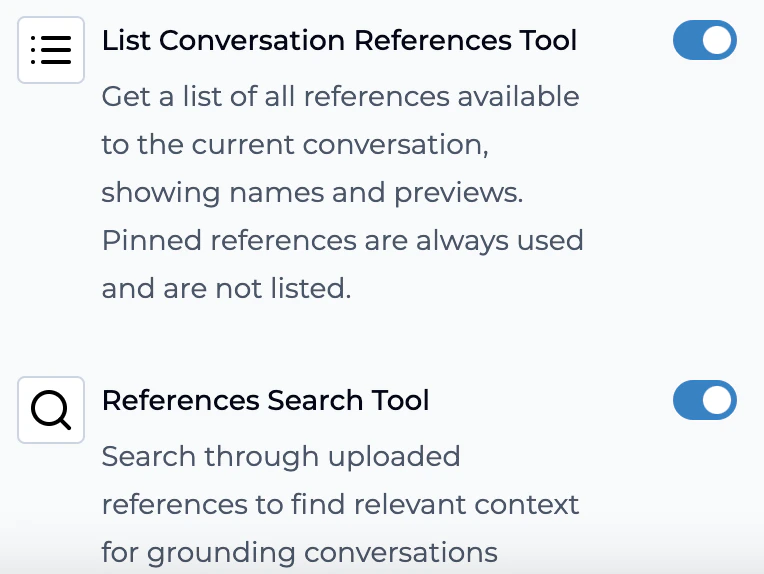
We recommend enabling both tools for optimal performance. The List tool helps identify available references while the Search tool does the heavy lifting of finding specific information.
Configure Your App Prompt
Add these instructions to your Playlab app prompt for optimal performance:
Optimize Your Document Organization
For best results, organize your reference materials with:
- Descriptive file names: Use clear, specific names like “Grade-5-Math-Unit-3-Fractions-Teacher-Manual.pdf” instead of “Document1.pdf”
- Well-structured documents: Files with clear headings and sections work best
Understanding the Agentic Search System
Core Search Tools
References Search Tool
The primary search engine that queries your uploaded documents for specific information and content, continuing to search until comprehensive information is found
List Conversation Reference Tool
Lists available references to help the search tool identify accessible documents more efficiently and understand the scope of available materials
Key Features
The Agentic Search Tool system provides several advantages over traditional reference handling:- Intelligent Navigation: Understands document structure and can move through sections systematically
- Comprehensive Search: Continues searching until it has sufficient information to answer your question
- Context Preservation: Maintains understanding of how different pieces of information relate to each other
- Organizational Awareness: Respects and utilizes your document organization system
- Tool Output Transparency: Detailed search results visible in tool outputs instead of widget display
- Scalable Access: Works with large reference collections without requiring manual subset selection
Models that cannot use MCP tools will lose reference access when these tools are enabled, so ensure your chosen AI model supports MCP functionality.
Important Changes in Behavior
Reference Widget Replacement
Reference Widget Replacement
When you enable the Agentic Search Tool, the traditional “references used” widget will no longer appear. Instead, you’ll see detailed reference information in the tool outputs, providing more granular insight into how your documents are being accessed and utilized. This actually gives you better transparency into the AI’s research process.
Model Compatibility Requirements
Model Compatibility Requirements
This is an MCP tool, which means AI models that don’t support Model Context Protocol will lose the ability to access references when the tool is enabled. Ensure your selected model has MCP capabilities before enabling these tools.
Enhanced Search Behavior
Enhanced Search Behavior
Unlike the traditional system that stops after finding 10 similar snippets, the Agentic Search Tool will continue searching your documents until it has comprehensive information to answer your question. This means more thorough responses but potentially longer processing times for complex queries.
Optimizing Your Reference Materials
Supported File Types
The system works with PDF, Word documents (.docx), and PowerPoint files (.pptx) through intelligent conversion that preserves document structure.Best Practices for Organization
File Naming Strategy:- ✅ Good:
Grade-5-Math-Unit-3-Fractions-Teacher-Manual.pdf - ✅ Good:
Science-Standards-Grade-6-Earth-Systems.docx - ❌ Avoid:
Document1.pdforH05JL - (copy 2).pdf
- Organize by subject area, grade level, unit, or topic
- Use consistent naming conventions
- Create logical hierarchies that match how you think about the content
- The AI will learn and respect your organizational choices
- Well-structured documents with clear headings work best
- Consistent formatting helps the AI understand content relationships
- Documents with table of contents or clear section divisions are ideal
Frequently Asked Questions
How does this differ from the traditional reference system?
How does this differ from the traditional reference system?
The traditional system finds the 10 most similar snippets and stops there. The Agentic Search Tool works more like an intelligent research assistant that can navigate through your organized materials, understand document structures, and continue searching until it finds comprehensive information to answer your question. Instead of seeing a simple “references used” widget, you get detailed tool outputs showing the AI’s research process.
Will this work with my existing document organization?
Will this work with my existing document organization?
Yes! The system is designed to respect and utilize whatever organizational structure you already have. Whether you organize by subject, grade level, unit, or any other system, the AI will learn your structure and navigate accordingly. You don’t need to reorganize your existing materials.
How many documents can this handle?
How many documents can this handle?
The system is designed to work with large collections of references. Rather than requiring you to manually select subsets for each app, you can enable the tool and give your app access to your entire reference collection. The AI will only search through documents that are relevant to the current conversation.
Do I need both tools enabled?
Do I need both tools enabled?
We strongly recommend enabling both the References Search Tool and the List Conversation Reference Tool. The List tool helps the Search tool identify available documents more efficiently, leading to faster and more accurate results. Think of the List tool as providing a “table of contents” for your reference collection.
What happens to my existing references?
What happens to my existing references?
Your uploaded reference documents remain unchanged and accessible. The tools simply provide a new, more powerful way to search and retrieve information from those same documents. All your content stays exactly where it is.
Which AI models work best with these tools?
Which AI models work best with these tools?
For optimal performance with Agentic Search Tools:Tier 1 Performance (Recommended): Claude Sonnet 4.6 (excellent balance of search accuracy and response quality), GPT 5.2 (superior for complex document analysis and precise retrieval), and Gemini 3.1 Pro (high accuracy with comprehensive document understanding).Tier 2 Performance: Claude Opus 4.6 (most thorough document analysis but slower response times), Claude Sonnet 4.5 (strong document interpretation with good reasoning), and Kimi K2.5 (advanced tool usage with solid reference handling).Speed-Optimized Options: Claude Haiku 4.5 (faster searches with reduced analysis depth) and Gemini 3 Flash (quick queries for simple reference questions).All selected models must support MCP (Model Context Protocol) to use these tools effectively.
Can I still see which references are being used?
Can I still see which references are being used?
Yes, but in a more detailed format. Instead of the traditional “references used” widget, you’ll see comprehensive information in the tool outputs showing exactly which documents were searched, what queries were performed, what specific content was retrieved, and how the AI navigated through your materials. This provides much more transparency than the previous system.
What performance should I expect with different models?
What performance should I expect with different models?
Claude Sonnet 4.6 and GPT 5.2 typically provide search results in 2-6 seconds with high accuracy. Claude Opus 4.6 offers the most thorough document analysis but may take 5-12 seconds. Speed-optimized options like Claude Haiku 4.5 respond in 1-3 seconds but with simpler analysis suitable for basic reference queries.For comprehensive reference work requiring detailed document analysis, Claude Sonnet 4.6 or GPT 5.2 provide the optimal balance of speed, accuracy, and thorough search capabilities.
Can I disable these tools and return to the old system?
Can I disable these tools and return to the old system?
Yes, you can disable the Agentic Search Tools at any time through the References panel. When disabled, your Playlab app will return to the traditional reference system with the “references used” widget display. Your documents and organization remain unchanged.
Need Support?
We’re continuously improving this tool based on user feedback. Contact our team at support@playlab.ai for implementation guidance, troubleshooting, or to share your success stories.Last updated: August 29, 2025